

The Customers page
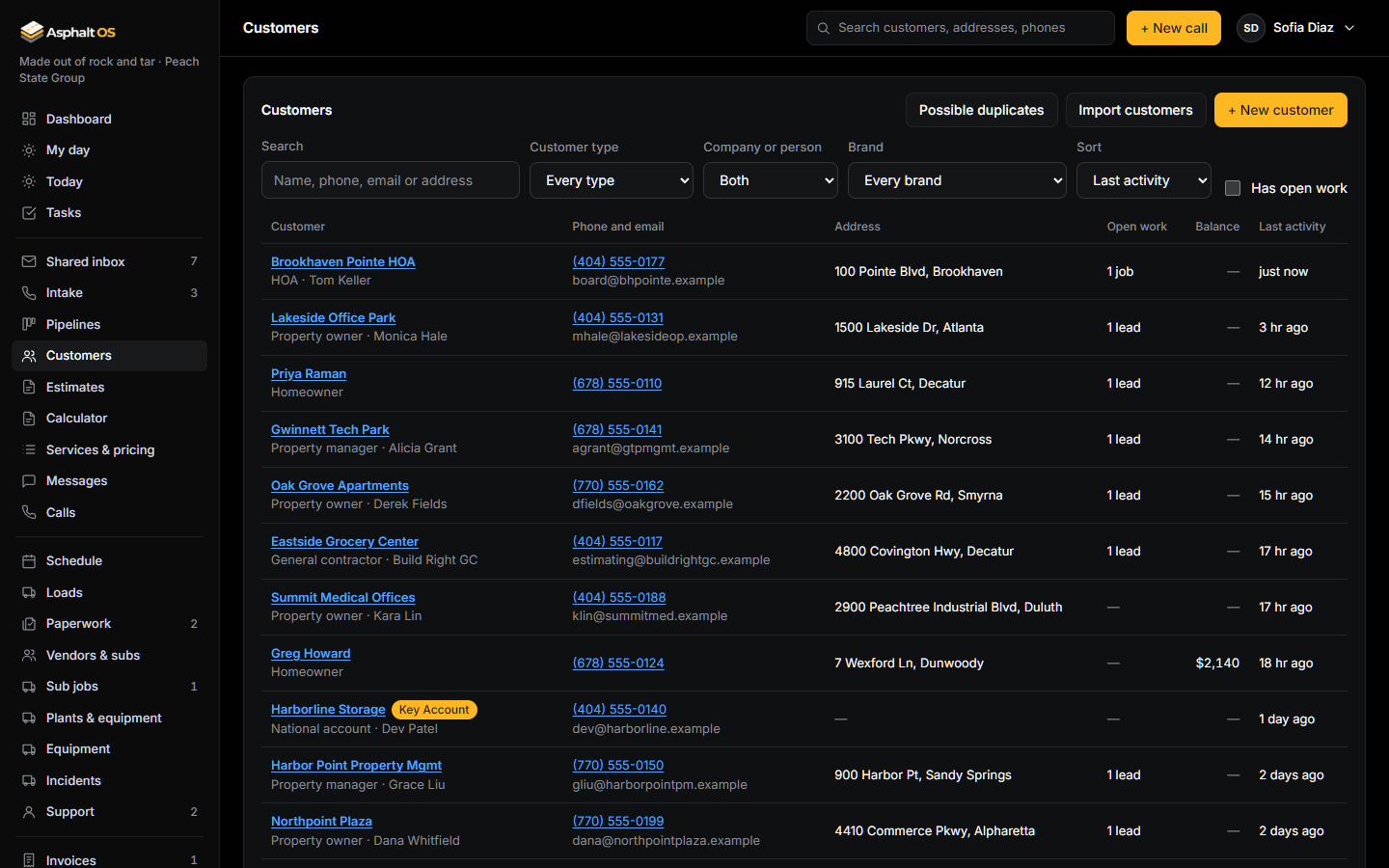
Customers (under Sales, next to Pipelines) lists every customer: the type, phone and email, the address, how many open leads and jobs they have, when they were last active and, for people who may see invoices, what they still owe. Search by name, phone, email or address; filter by customer type, company or person, brand and Has open work; sort. It loads 50 at a time, says "Showing 50 of ..." and has Show 50 more, so nobody is silently left out. It works on a phone.
The page opens for the office roles that already work the customer book: in a new company the CEO, both VPs, the Controller, the Office manager, the Estimator, the Dispatcher and the Intake VA. Crews, foremen and the Asphalt OS staff account never see it, and the database enforces that, not just the screen.
A customer's profile
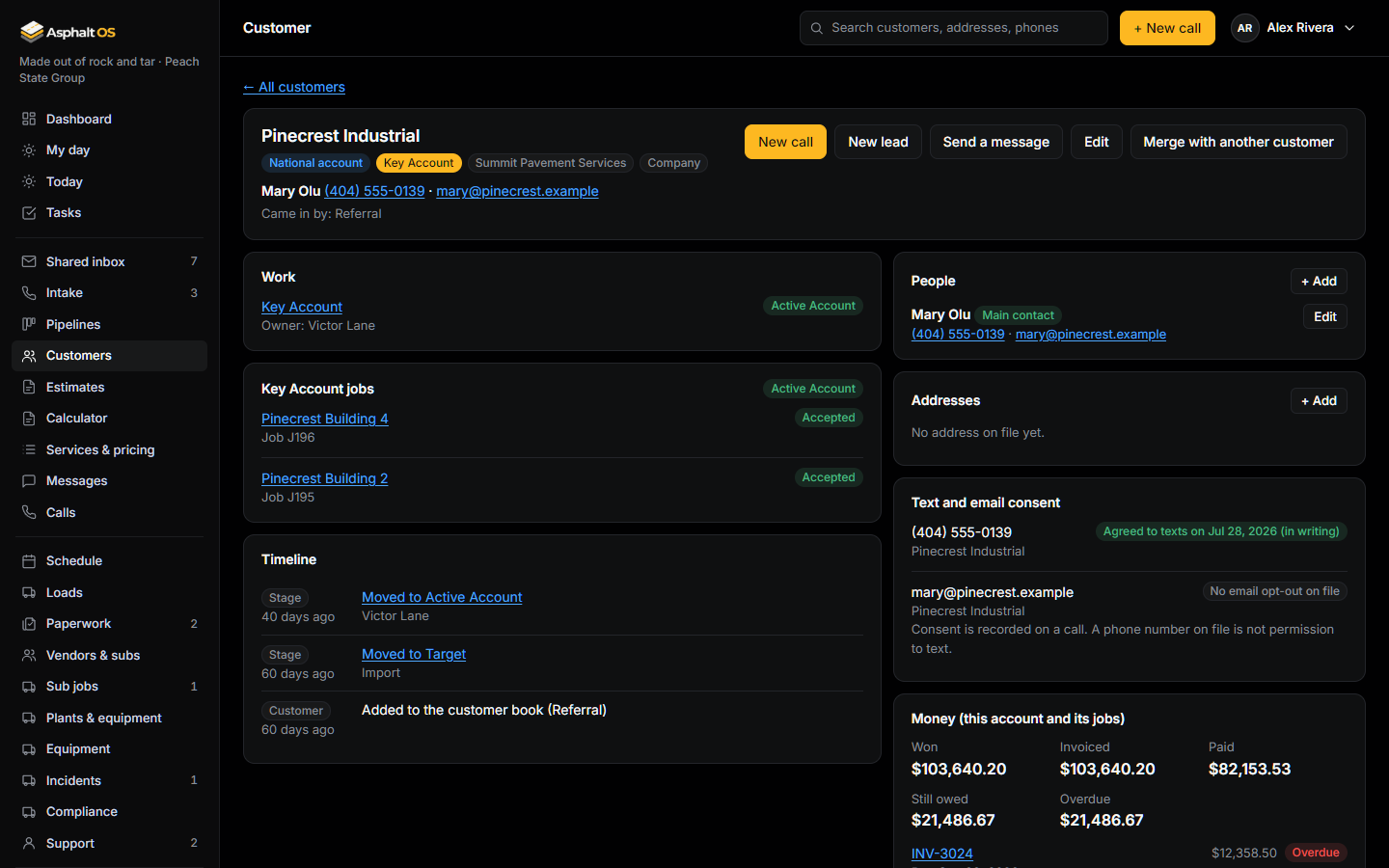
Open a customer to see:
- People: their contacts, one of them the main contact, and Addresses, each with a map link.
- Text and email consent in plain words, for example "No text consent on file". Consent is recorded on a call: a phone number on file is not permission to text.
- Their work: the leads, jobs and tickets you may see. An Estimator sees the whole book, but inside a profile only their own leads. A Key Account shows all of its jobs together.
- Money, for people who may see invoices: what is owed, with "Overdue" on an invoice past its due date.
- Notes, and the Timeline: calls, leads and their moves, quotes created, viewed and signed, jobs, invoices and payments, texts, email conversations (each with where it stands: Needs reply, Waiting on them, Done), tickets, tasks and notes, newest first, with Show older. Each entry opens what it names: an email conversation opens in the shared inbox. Texts and emails on a lead show only to people who may open that lead, and email conversations only to people who may open their box of the shared inbox.
The buttons: New call, New lead, Send a message, Edit and Merge with another customer. Adding or changing a customer, a person or an address takes "Take calls and create leads", "Tier and route new leads" or "Create and edit estimates".
Linked from everywhere
- Intake recognises a caller whose number is on file and offers Add this call to ... instead of making a second customer. See Intake and phone calls.
- The lead drawer, the pipeline card menu, estimates, invoices, the ticket drawer and the Messages page link the customer's name to the profile.
- The search box in the top bar suggests up to five customers as you type, each opening its profile, with "All customers matching ..." last.
Import customers from a spreadsheet
Press Import customers on the Customers page. It takes a CSV file, which Excel, Google Sheets, QuickBooks, another CRM or a phone can all save, up to 5 MB and 5,000 rows, or the pasted text.
- Choose a CSV file, or paste it. The columns (name, company or person, phones, email, address, customer type) are matched for you: "We matched the file's columns; change any that are wrong."
- Press Practice run (changes nothing). It shows what every row would do: a new customer, adds to a customer you already have (matched by phone or email; only their blanks are filled), a duplicate of an earlier row, or refused and why (no name, or no phone and no email).
- Press Import these customers. It does exactly what the practice run showed, all in one go. Changing the file or a column asks for a new practice run first.
- Imported people get nothing: no text, email, acknowledgment or task. No consent is assumed: a phone number in a spreadsheet is not permission to text.
- Past imports lists every import with who ran it and every row. Undo this import asks for your password again and removes only the customers the import created that nothing has been added to since. A phone or email it filled in on a customer you already had stays.
- Importing needs "Import customers from a spreadsheet": the CEO, the Controller and the Office manager in a new company. "Import and migrate data" is a different permission: it opens the GoHighLevel import.
Merge two customers into one
Before the Customers page, every phone call made a new customer, so a book has duplicates. On the profile you want to keep, press Merge with another customer, find the duplicate by name, phone, email or address, and the page shows the two side by side: what each holds (leads, jobs, invoices, messages, tickets and appointments), their people, their addresses and their text consent.
- Each of the duplicate's people and addresses says whether it joins one already on the kept customer (the same person with the same email or phone; the same street, city and state) or moves across. Two people who share an office line stay two people.
- Under Which details to keep, pick the name, type, email, phone, billing address and notes. Where the kept customer's is empty, the duplicate's is picked for you; when both have notes, both are kept unless you choose one. A phone or email you don't pick is kept as a contact, with its consent: consent belongs to the number, not the customer.
- Every lead (with its jobs, quotes, appointments, calls and notes), invoice, message and ticket moves to the kept customer. Nothing is lost.
- It can't be undone, so it asks for your password again. An old link or bookmark to the duplicate opens the kept customer and says "X was merged into Y", and the timeline says who merged them.
Possible duplicates on the Customers page lists pairs that share a phone number or an email, each with Compare and merge. A number shared by more than 25 customers (a management company's office line) is listed once, not as hundreds of pairs.
Merging is for the people who add and change customers, not the Controller: a merge is not an import. A duplicate that holds invoices can be merged only by someone who may see invoices, and the page says so before they confirm.