

The week
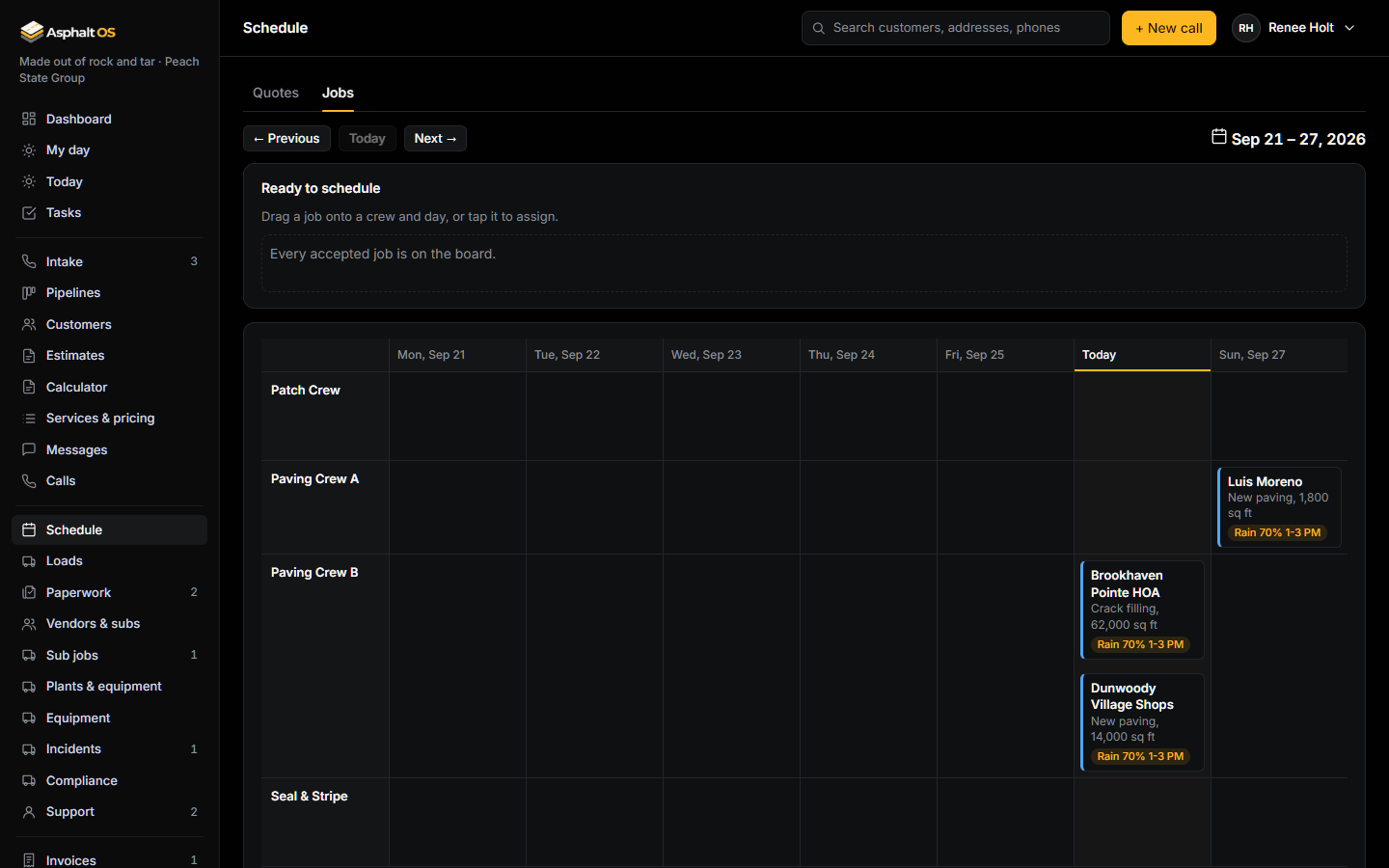
Schedule shows one week, Monday to Sunday, in your company's time zone. Move with Previous, Today and Next. It has two tabs:
- Quotes: visits to measure and quote, one row per person who does them.
- Jobs: the crew board, one row per crew.
The Quotes tab is for people who book visits or see leads. The Jobs tab needs "See the schedule", and changing it needs "Assign crews and dates". People who can see the board but not change it get a view-only note.
Quote visits
Press + Book in a person's day, or open an existing visit. A visit has:
- The customer (open leads only), who is going and what for: Site visit, Meeting or Other.
- The day, start and end (09:00 to 10:00 to start). A visit lasts at most 12 hours.
- Notes, and access notes such as gate codes, parking and who has the keys. Tick "Use the lead's access notes" to copy them.
A visit is Scheduled, Done, Canceled or No-show. Buttons: Book the visit, Mark done, No-show and Cancel visit. Canceling keeps the history; only the owner can delete.
- Nobody can be booked twice at the same time. Back-to-back is fine, and a canceled or no-show slot can be booked again.
- Visits go to the owner or to people who build estimates, never to a crew member.
- A Lost or Canceled lead can't be booked until it is reopened.
- The person a visit is booked for sees the customer, address, contact and access notes, never prices. They can complete, cancel or move it, but not hand it to someone else.
Booking visits needs "Book quote appointments". Estimators book only on leads they can see.
The crew board
Ready to schedule lists accepted jobs with no date yet, oldest first. Drag a job onto a crew and a day, or tap it to assign.
Tapping a job opens its details: number, scope, status, address with Directions, access notes and the contact with tap-to-call. Pick the Crew, tick the Days, and press Put it on the board (or Save the dates). Unschedule takes it off.
- Drag a job to another day or crew to move it. Drag it back to Ready to schedule to take that day off.
- One assignment covers up to 7 days. Days more than 7 days back can't be set.
- Only jobs that are Accepted, Scheduled or In progress can be moved. Complete, Canceled and On hold jobs keep their days.
What scheduling does
- The job moves to Scheduled.
- The handoff task "Schedule date set" is done. See Paperwork and the handoff.
- The customer gets a text with the date, if they agreed to texts. At most one date text per job per day: a later change that day alerts the team to call them instead.
- Order tasks go out for the asphalt, the equipment and the trucking. See Truck loads and plants.
Taking a job's last day off moves it back to Accepted, reopens "Schedule date set", and tells the customer the date is being rescheduled (only if they had been texted a date).
What crews see
Foremen and crew members get a simple list of their own crew's jobs this week: day, address, job, scope, weather, access notes, contact, start time, notes and directions. No prices, ever. See Why crews never see prices or costs.
Weather warnings
Asphalt OS watches the forecast for every scheduled job every half hour, for today and the next 2 days, over the crew's working hours (the start time plus 8 hours, or your business hours).
| Warning | Starts at (new company) | Why |
|---|---|---|
| Rain | 50% chance during the scheduled hours | Rain spoils paving, sealcoating and striping. |
| Cold | Below 50°F | Hot mix will not compact. |
| Heat | Above 95°F | A warning only, never a stop. |
| Wind | 20 mph or more | Sealcoating and striping will not hold. |
| Storm warnings | Any National Weather Service warning, watch or advisory that stops paving | Thunderstorms, floods, wind, winter weather, ice or freeze, and every severe or extreme warning. |
Change the four numbers on the Weather card of Settings.
The tag on the job
Each job on the board, today and later, carries a weather tag: red for cold or a storm warning, amber for rain, wind or heat, green when it looks fine, and grey before the first forecast. The tag names the worst problem, for example "Rain 70% 1-3 PM", and "+2" when there are more.
Tap the tag (or click it) to see every problem that day, any notices for your information, and when the forecast was fetched. Tap again, or press Escape, to close it. Tapping the tag doesn't open or move the job. Crews see the tag on their list too.
When a limit is crossed
The first time each kind of warning hits a job on a day, the operations person gets a task (for example "Rain 70% on ... Thu 1-3 PM: confirm or move it"), with an alert and a line on the customer's timeline. Only hours still ahead count: nobody is warned at 3 PM about rain at 1 PM.
A job with no location on the map says "No site location, so no weather watch", and the dispatcher gets one task to fix the address.
The forecasts come from the National Weather Service, a free US government service that receives each job site's location. The Weather card on Connections chooses it; until then the board shows a built-in sample forecast and nothing about your job sites is sent out.