

Two boxes
Shared inbox has two tabs: office@ for all customer mail, and bids@ for PlanHub and requests for quotes. People who can work the shared inbox see both. Estimators see bids@ only.
The banner says how many conversations still need a reply. It turns red from 4:30 PM while any remain. The rule behind it: if it isn't in the system by the end of the day, it doesn't exist.
An incoming email is matched by the sender's address to a customer or contact you already have (and to a vendor, or one of your own people). Asphalt OS never creates a record by itself.
Conversations, not messages
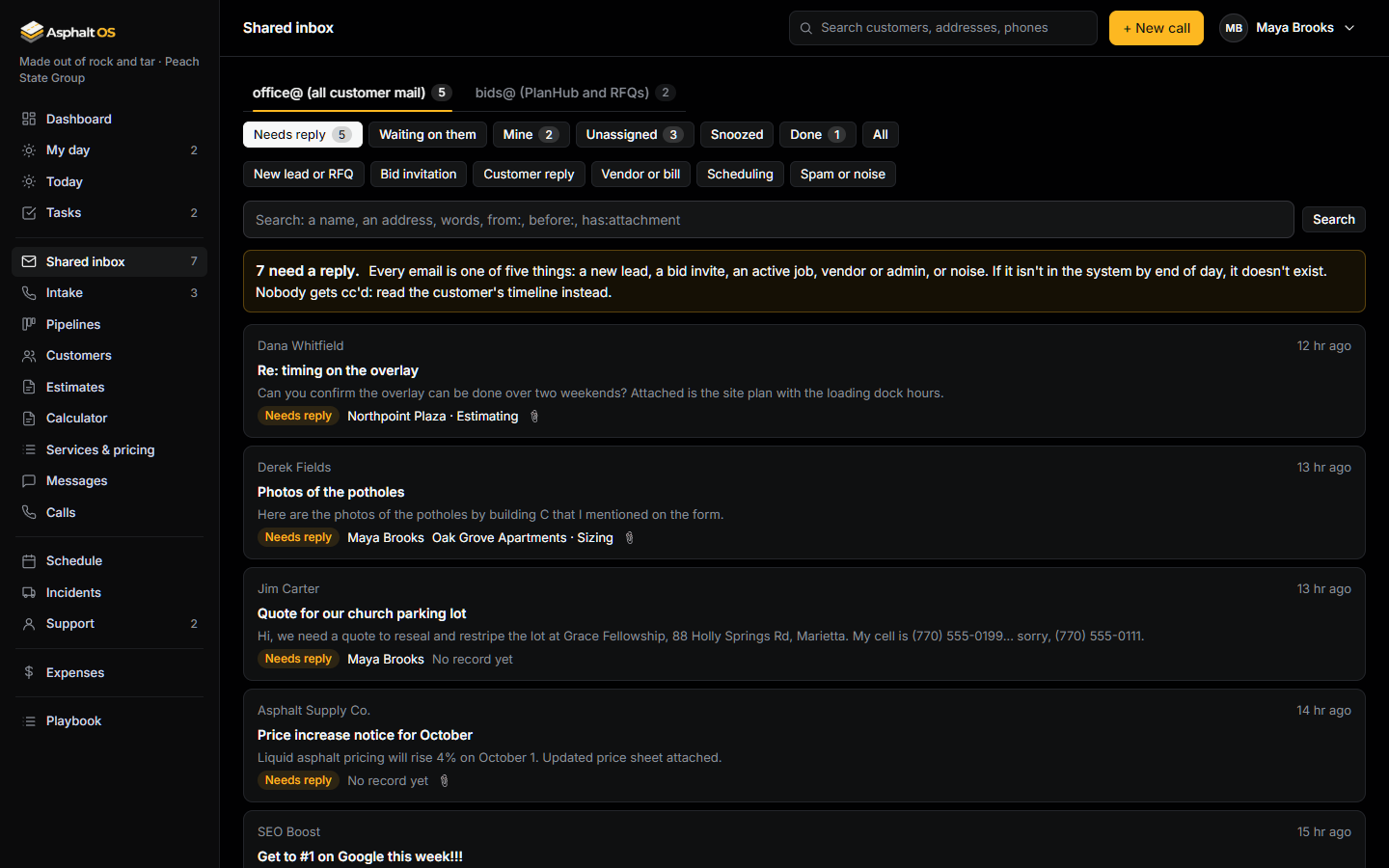
An email and every reply to it are one conversation. Each row of the list shows the subject, the people in it ("Pat Nguyen, you"), the first line of the last message, how old it is, its status, who owns it, the record it belongs to (or No record yet), a paperclip when there are attachments, and how many messages it holds. The newest incoming message comes first.
The filter row narrows the list: Needs reply, Waiting on them, Mine, Unassigned, Snoozed, Done and All, each with its count. Tap a row to open the conversation: on a desktop it opens beside the list, on a phone it is its own page.
Where a conversation stands:
- Needs reply: somebody outside the company wrote in last. A new email from them puts a Done or Snoozed conversation back here, at the top.
- Waiting on them: your side wrote last, from the app or from the mailbox itself.
- Snoozed: out of the way until a time you pick (tomorrow 8 AM, in 3 days, next Monday, or a date).
- Done: sorted or finished. Who finished it and when is recorded.
At the top of a conversation you can change its status, put it in a category, pick its owner (they get a "Handle email" task due in 4 business hours, as before; estimators can only take a conversation themselves) and link it to a record. The owner is always somebody who can open the conversation's box: an office@ conversation is offered to the people who work the inbox, a bids@ one to the estimators too: a lead or job you already have and can open yourself.
Notes under the messages are private: the customer never sees them, and @Name pings a colleague, like every comment thread in the app.
The five buttons
The latest incoming email of a conversation is still one of five things. Pick one under This is:
- A new lead: if the sender is already a customer, the email is logged on their lead. Otherwise a new lead is made from the sender's name and the phone number and street address in the email. Email leads come in without texting consent.
- A bid invite: type the project name, the bid due date and the address (optional), then Create opportunity. The attachments go with it. Without an address it waits in the intake queue.
- An active job: pick the job and press Log it.
- Vendor or admin: a task goes to your office person, due in one business day. They become the conversation's owner if they can open its box.
- Noise: archived.
Sorting marks the conversation Done and links it to the record the sorting made or picked. Once sorted, an email stays sorted, and who sorted it and when is recorded. A later reply from the customer reopens the conversation on the same record.
Replying from the app
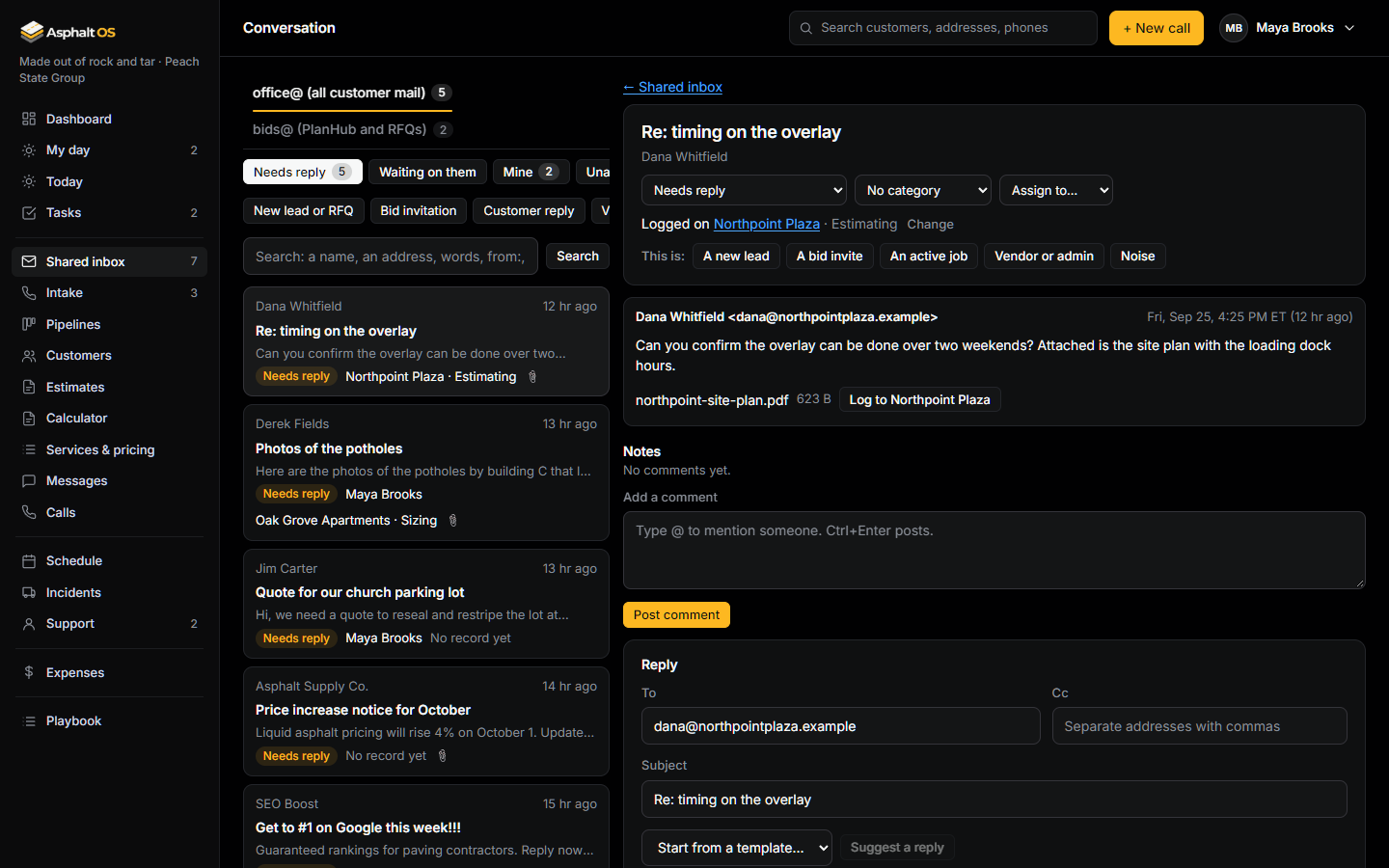
The Reply box at the bottom of a conversation starts with the last sender in To, the other people in Cc, and "Re: ..." as the subject. Pick one of your message templates to start from, or write the reply; attach files from the record (the attachments already in the conversation) or upload one (a PDF, an image or a CSV, up to 10 MB); press Send, and confirm once.
- The reply goes out through the same outbox as every other letter, from the brand's own address: when your sending is captured it lands in the test mailbox, when it is live it goes to the customer. The message shows Queued, then Sent, as the outbox reports.
- The conversation moves to Waiting on them; when they answer, it comes back to Needs reply.
- Sending needs the permission to send messages (the same as texting). A person who may only work bids@ can reply there.
- Suggest a reply asks the AI for a draft of the answer, for you alone, which you check and send yourself. See Suggested replies.
Replies your people send from Gmail or Outlook itself show up in the conversation too, marked "from the mailbox": the app reads the Sent folder as well as the inbox. A reply sent from the app shows in the mailbox's own Sent folder too once the owner switches on the copy (see What only the owner switches on). A reply stays in a bids@ conversation when it is sent from bids@ or copied to it; one sent from office@ to the customer alone is filed on office@, as a conversation of its own.
Categories and rules
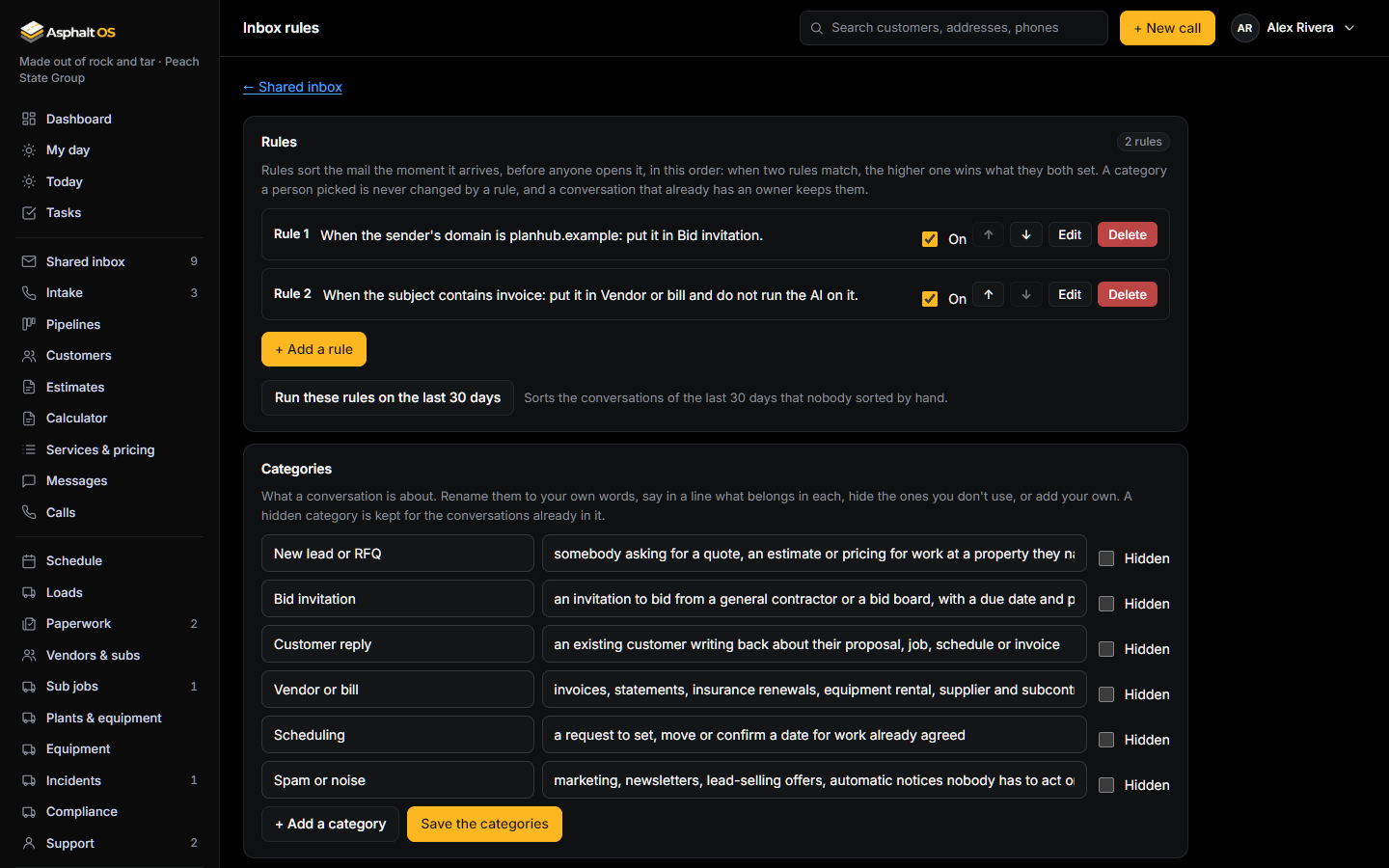
Every conversation can be put in a category: what it is about. A new company starts with six: New lead or RFQ, Bid invitation, Customer reply, Vendor or bill, Scheduling, and Spam or noise. Under the filter row, a chip for each category says how many conversations of that filter are in it: tap one to see only those, tap it again to see them all. Anyone who works the inbox can change a conversation's category at the top of it.
Rules sort the mail for you, in plain words, the moment it arrives and before anyone opens it. Open Rules beside the box tabs, or from Automations: people who can change automations or company settings see it, and only people who can change automations (the CEO, in a new company) can change it. Press + Add a rule and fill in the form, which reads as a sentence:
- When the sender's address, the sender's domain, a recipient, the subject, the text, an attachment's name or the box is, contains, starts with or ends with what you type. Capitals don't matter, and a domain that "is" planhub.com also catches mail.planhub.com. + and another condition adds one more: all of them must hold.
- then put it in a category, assign it to someone who works the inbox, mark it Done, or do not run the AI on it, in any mix. A rule for one box assigns only somebody who can open that box; a rule for any box gives its person only the mail that lands in a box they can open (an estimator gets what comes to bids@, and what comes to office@ stays unowned).
Saved, the rule reads back as a sentence, for example "When the sender's domain is planhub.com: put it in Bid invitation and assign it to Andre Moss." Each rule has a switch, and arrows to move it: the rules run in this order, and when two rules match, the higher one wins what they both set. A rule never changes a category a person picked, and never takes a conversation off someone who already owns it. On the list, a category a rule set shows the rule's number, "Bid invitation (rule 2)", and the conversation says "by rule 2" beside its category.
Run these rules on the last 30 days applies the rules to the conversations of the last 30 days that nobody sorted by hand: a category a person picked, or one a rule already set, stays as it is, and a rule's mark it Done only closes a conversation that still needs a reply. It runs in the background within a minute; the tab then says when it ran and how many conversations it sorted.
Below the rules, the Categories: rename them in your own words, say in a line what belongs in each (the AI reads that line to know what belongs where), hide the ones you don't use, or add your own. A category is never deleted, because conversations and rules use it: a hidden one is kept for the conversations already in it. Every change to a rule or a category is in the history log on Team & security, a rule with its sentence. The rules involve no AI: they run first, every time.
The AI assistant
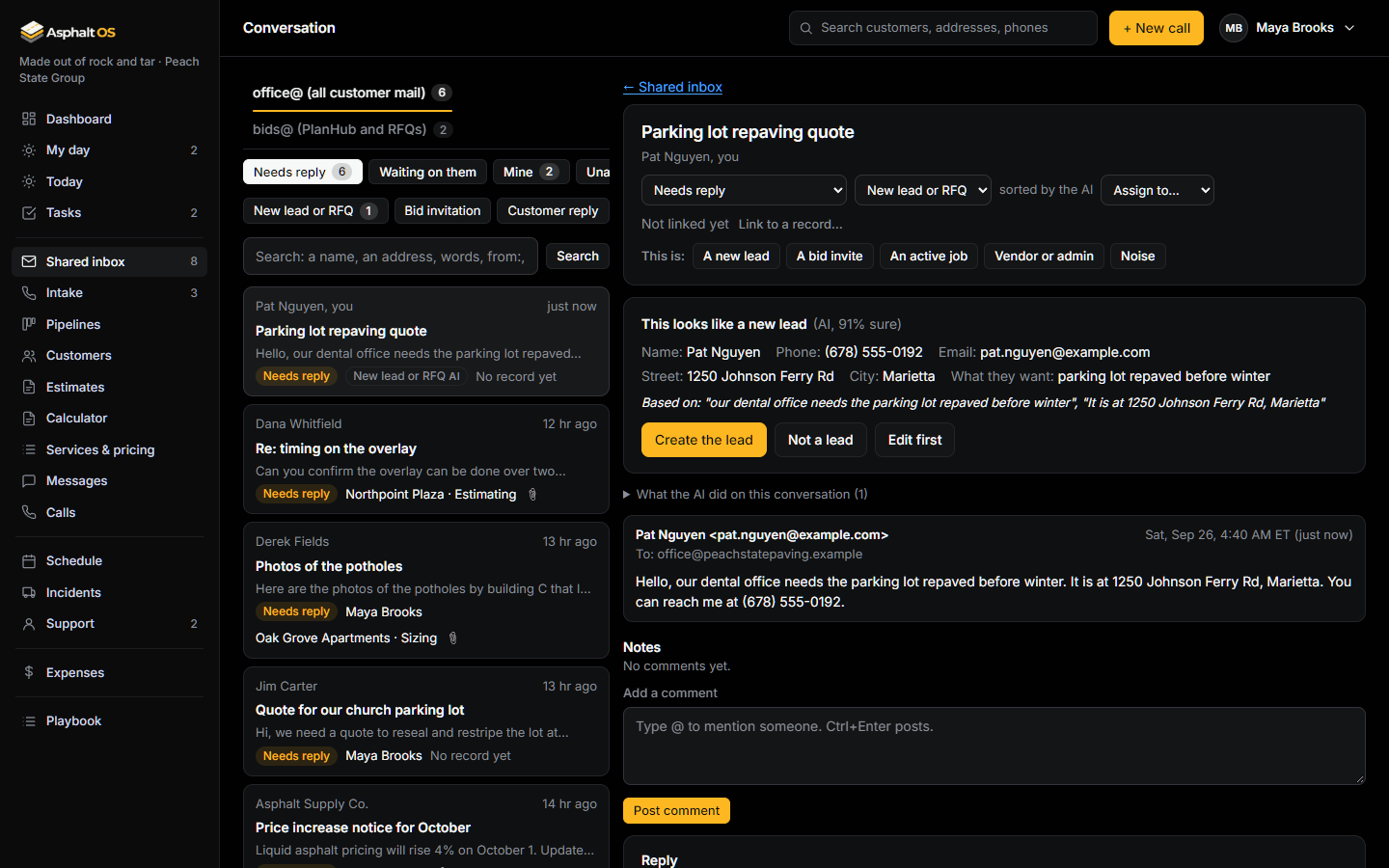
With your company's own Anthropic key on Connections, an AI assistant works in the shared inbox, in the background, on the mail your rules did not decide. Without a key none of this happens, and everything else in the inbox works as before.
What it does on its own:
- Sorts a new conversation no rule sorted into one of your categories. The category shows a small AI mark until a person picks one, and the AI never changes a category a person or a rule chose.
- Reads an email for what to create when its category makes something (New lead or RFQ, Bid invitation, Vendor or bill, Scheduling; a category of your own makes nothing), and puts a card on the conversation: "This looks like a new lead (AI, 91% sure)", the details it found (the name, phone, address and what they want; a bid's project, due date and general contractor; a bill's vendor, invoice number, amount and due date), and the sentences of the email it relied on.
- Sums up a long conversation (four messages, or one very long email) in a paragraph at the top, with who it is waiting on, and again when new mail comes in. Refresh asks for a new one now: the card says Working on it for a few seconds, then shows it.
- Flags an email that tries to give the AI instructions, in red at the top of the conversation. Nothing is done because of it.
The cards. Each card has three buttons: Create (Create the lead, Create the opportunity, Create the bill, Open a ticket, Make the task), one to dismiss it (Not a lead, Not a bid and so on), and Edit first, which opens the card's details to correct before creating. Create does what the matching button does by hand: a lead comes in with source Email and no texting consent, and the conversation is Done on it; an opportunity is made the way A bid invite makes one, with its bid due date at 5 PM. A bill is created only by someone who enters bills, with the email's PDF attached and the conversation Done; anybody else sees who can. A ticket is opened by someone who manages support tickets, on the conversation's customer. A scheduling request becomes a task for your operations or office person: the AI never moves anything on the calendar.
What it never does: send a text, or an email the owner did not let it send (unless the owner lists categories under What only the owner switches on, a person presses every button), create anything without a person pressing Create, or read the emails of your mailbox's first sync (the last 7 days) for what to create: those are only sorted, so the first morning is not a wall of cards.
What leaves the building, and through which key. Only through your company's own Anthropic key, and only from the background worker: the app server never holds the key. For each email it reads, exactly this: the sender's name and address, the addresses it was sent and copied to, the subject, when it arrived, whether it came in or was sent, its box, who the sender is to you (a customer and the stage of their record, a vendor or one of your people), the attachments' names, types and sizes, and the text, cut at 20,000 characters; for a summary, the conversation's latest messages; for a suggested reply, the conversation's last 4 messages, the facts about its record the person who asked may see, their name, your company's name and phone, and your voice lines, sign-off and message templates; for a reply the AI sends by itself (only for the categories the owner lists), the conversation's last 4 messages, the name and stage of its record, your company's name and phone, and your voice lines, sign-off and message templates, never an amount; for the morning digest, counts and the waiting conversations' subjects, categories, ages, owners and records; and your categories with their lines. Never the attachments' contents, unless the owner switches Read attachments too on: then an email's PDFs and photos go too, three at most, 10 MB each. Never another company's mail, a password or a key. The server's log records that a conversation was sorted and what it cost, never what an email said. Every AI call leaves a line on its conversation under What the AI did on this conversation.
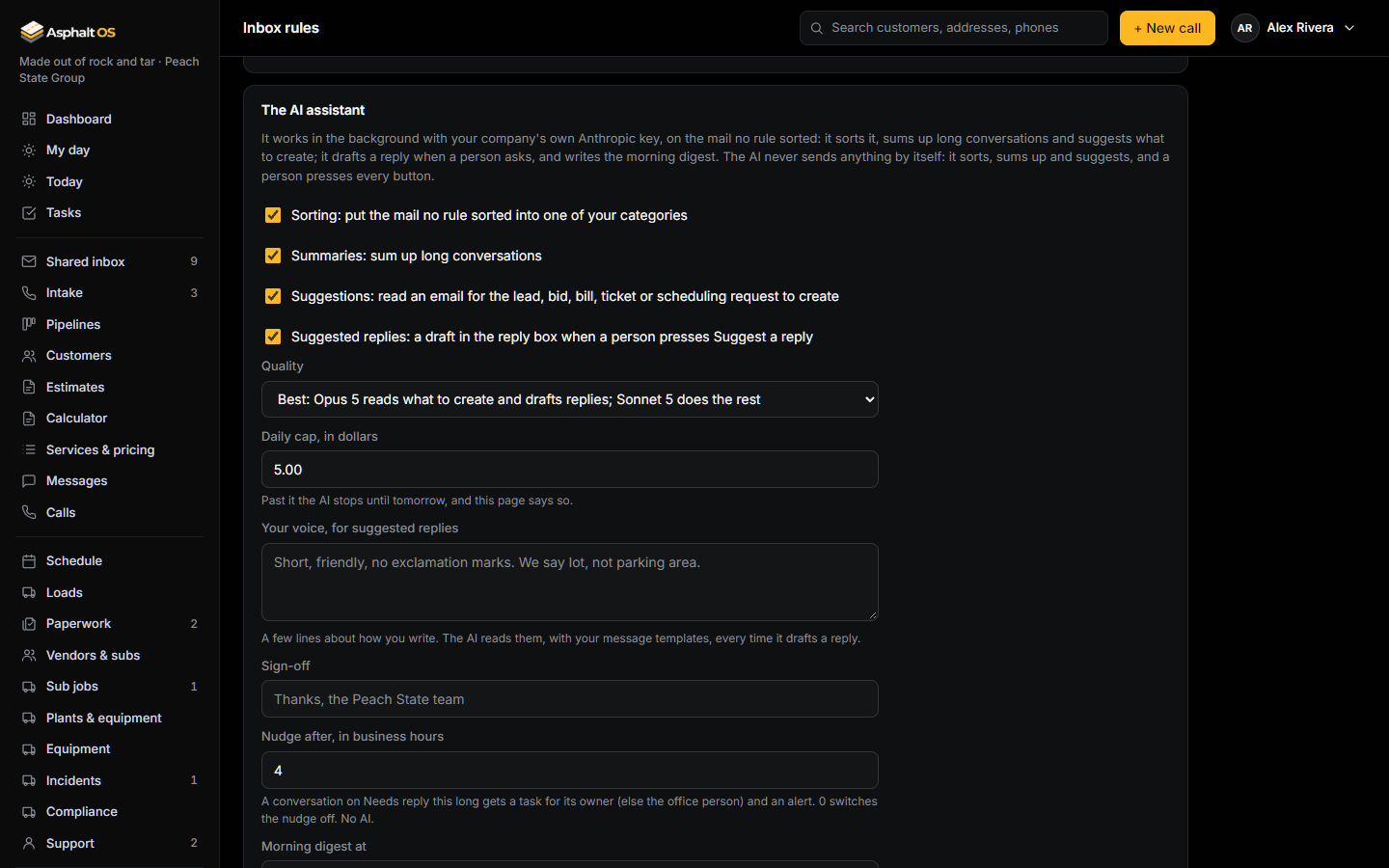
The switches. The AI assistant card at the bottom of the Rules page has Sorting, Summaries, Suggestions and Suggested replies, the quality (Best: Opus 5 reads what to create and drafts replies, Sonnet 5 sorts, sums up and writes the digest; Standard: Sonnet 5 for everything), the daily cap (5 dollars a day to start, drafts and the digest included), your voice lines and sign-off for suggested replies, the nudge (after how many business hours) and the morning digest (at what time, and to whom). The people who change automations change them; the settings people read them. Read attachments too is the owner's alone and asks for the password again, and so are the three switches below it (What only the owner switches on). Every change is in the history log.
What it costs. Your own Anthropic account pays for it: at 150 emails a day, about 75 to 90 dollars a month at Best and about 45 at Standard. The card shows this month's calls and cost and today's cost against the cap. Past the cap the AI stops until tomorrow and the card says so in red, so a month can never cost more than about 150 dollars at the 5-dollar cap.
Suggested replies
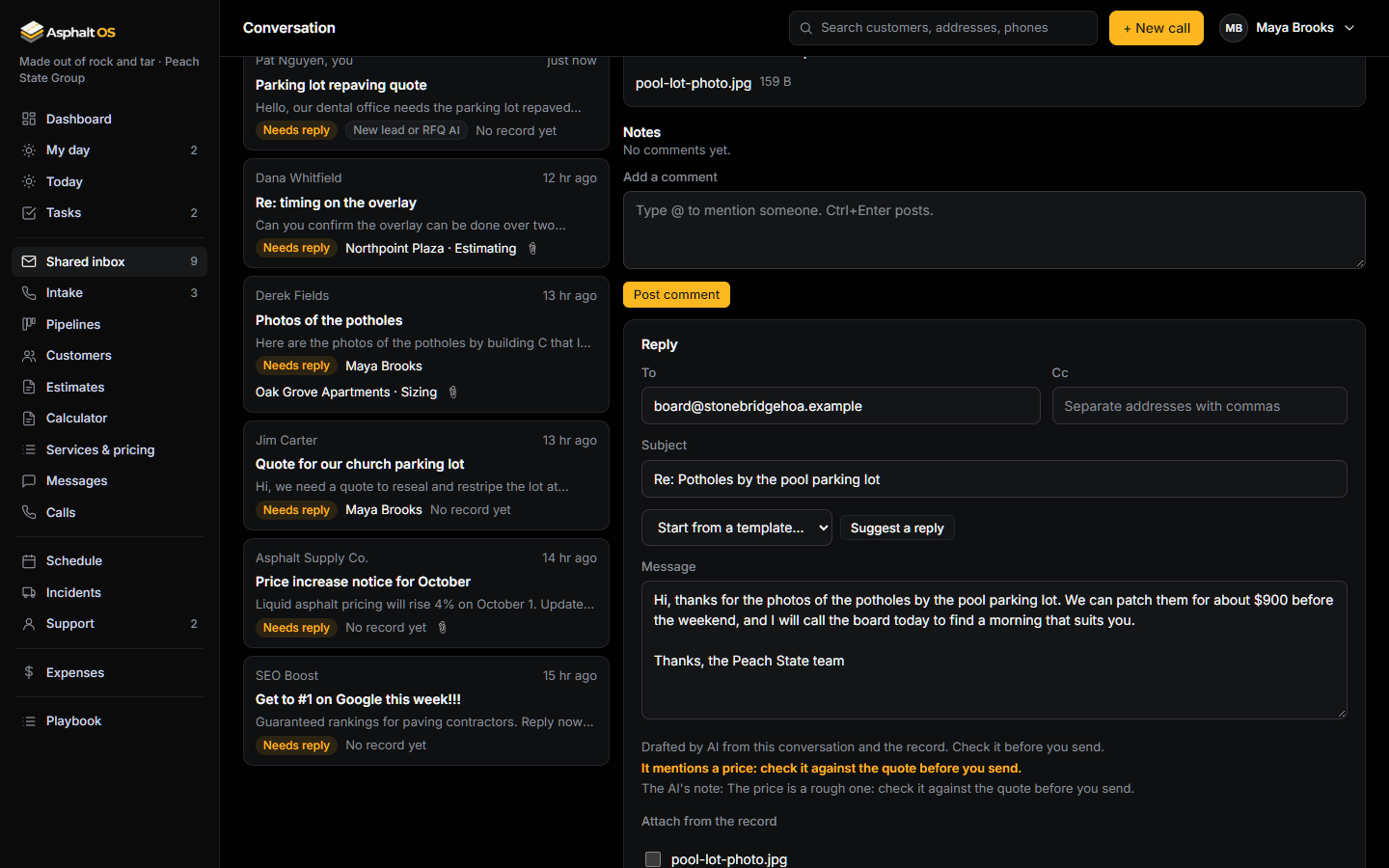
Suggest a reply in the reply box asks the AI for a draft of the answer, for you alone. It works while your company has its Anthropic key and the Suggested replies switch is on, for people who may send messages; otherwise the button is off and says why.
- While the AI writes, the box says Writing a draft…. A few seconds later the draft is in the box with its subject, and a grey line under it: "Drafted by AI from this conversation and the record. Check it before you send."
- An orange line warns when the draft mentions a price (check it against the quote), promises a date (check the schedule), or when the AI thinks a person should handle this one, which is always so when an email in the conversation tried to instruct the AI. A price anywhere in the text is flagged, whatever the AI said about it.
- It writes from the conversation's last 4 messages, your name, your company's name and phone, your voice lines, sign-off and message templates, and only the facts you may see yourself: the customer or record and its stage; the latest quote the customer was sent, with its amount, only if you price, send or approve quotes (an Intake VA's drafts never carry one); the next day on the schedule, if you may see the schedule; an open invoice, if you may see invoices.
- It is only a draft: change what you like and press Send, as for any reply. The AI never sends your draft. Nobody else sees your draft; a draft you leave waits for you in the box, and one for an earlier email goes when a new email comes in. The history log records that you sent a reply the AI drafted, never its words.
- Each draft is a paid call, counted against the daily cap; one person can ask for six a minute at most.
What only the owner switches on
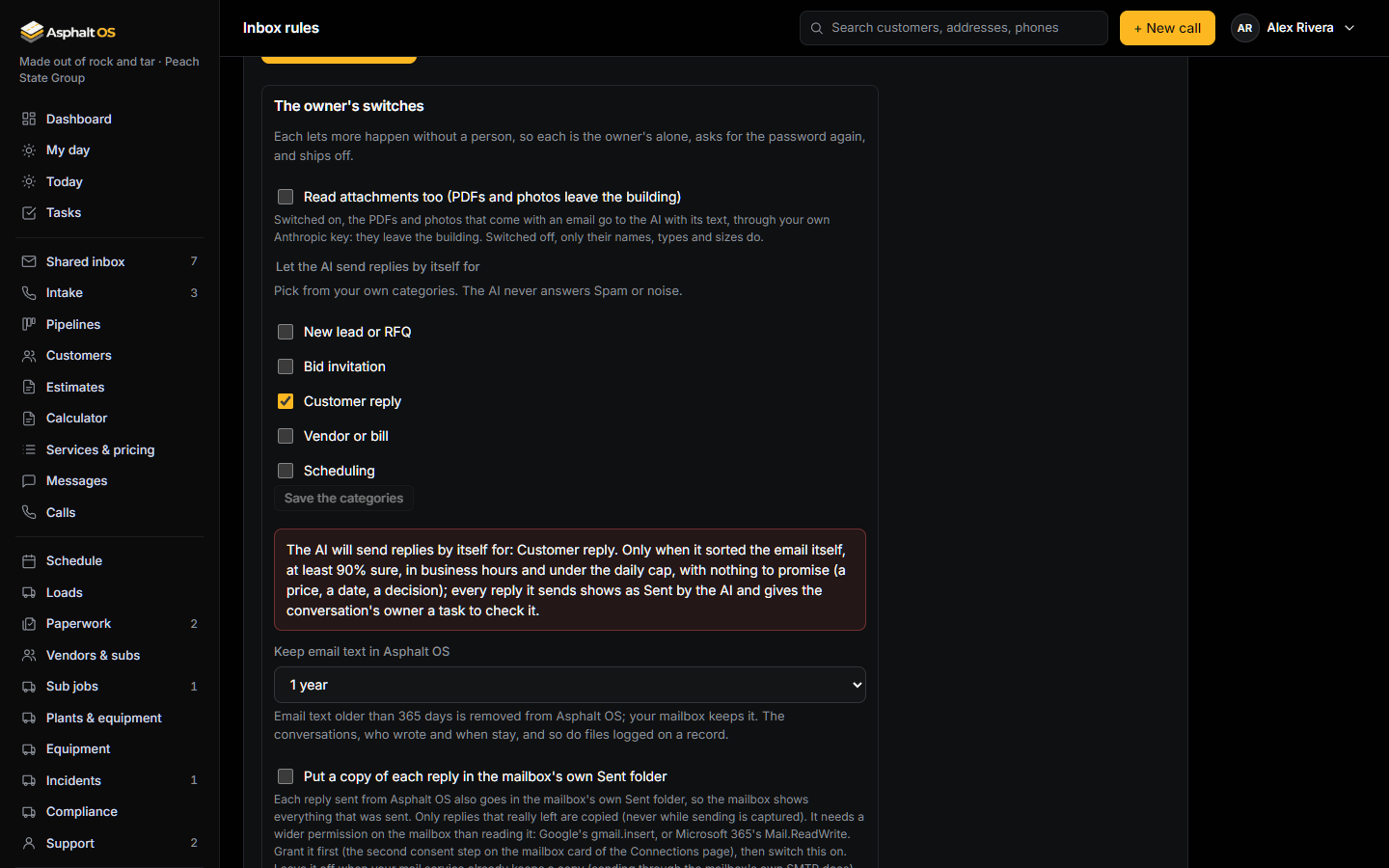
Three switches at the bottom of the AI assistant card let more happen without a person. Each is off to start, each is the company owner's alone (anybody else sees them, greyed out, with "Only the owner can switch this."), each asks for the password again, and each change is in the history log in plain words.
- Let the AI send replies by itself for the categories you tick, then Save the categories (never Spam or noise: a reply to spam tells the sender the address is read). The card then says it in so many words: "The AI will send replies by itself for: Customer reply." The AI sends a reply only when all of this holds, and the database checks it again as the letter is queued: the AI sorted the email itself, at least 90% sure (never a rule's or a person's category); the email is not one of the mailbox's first sync; nobody answered it yet; the reply goes to the person who wrote, already in the conversation, never somebody new, and never somebody who asked for no email (your consent records say so: the AI leaves them to a person, who may still answer by hand); it is business hours and under the daily cap; and its draft promises nothing, with no money in any words (no currency sign or word, no "5k"), no date, no decision and nothing the AI thinks a person should handle, and nothing in an email that tried to instruct the AI. It writes from the conversation's last 4 messages, the record's name and stage, your company's name and phone, and your voice lines, sign-off and message templates, never an amount. Otherwise nothing goes and the conversation waits for a person as usual. A reply the AI sent goes out through the outbox like any other (to the test mailbox while your sending is captured), shows as Sent by the AI on the conversation, in the list and on the letter, and gives the conversation's owner (or the office person) a task: "Check the AI's reply to Kay Moreno". Each one leaves a line under What the AI did on this conversation. The AI never starts a conversation and never texts.
- Keep email text in Asphalt OS: for ever (the default), or for a number of days, 30 at least. Every night, the text of the emails older than that is removed from Asphalt OS, and their attachments except the ones logged on a record, with the AI's summaries of those conversations, its older notes and the digests older than 90 days. The conversations, who wrote, to whom, when and what was done with each email all stay, and your mailbox keeps every email as it was. The history log gets one line a night saying what was let go.
- Put a copy of each reply in the mailbox's own Sent folder, so the mailbox shows everything your company sent. Only a reply that really left is copied: never one sent while your sending is captured. It needs a wider permission on the mailbox than reading it (Google's gmail.insert, or Microsoft 365's Mail.ReadWrite), granted in a second consent step: see Connections. When the mailbox refuses a copy, the card says why in red and the reply itself has still gone. Leave it off when your mail service already keeps a copy (sending through the mailbox's own mail server does).
The morning digest
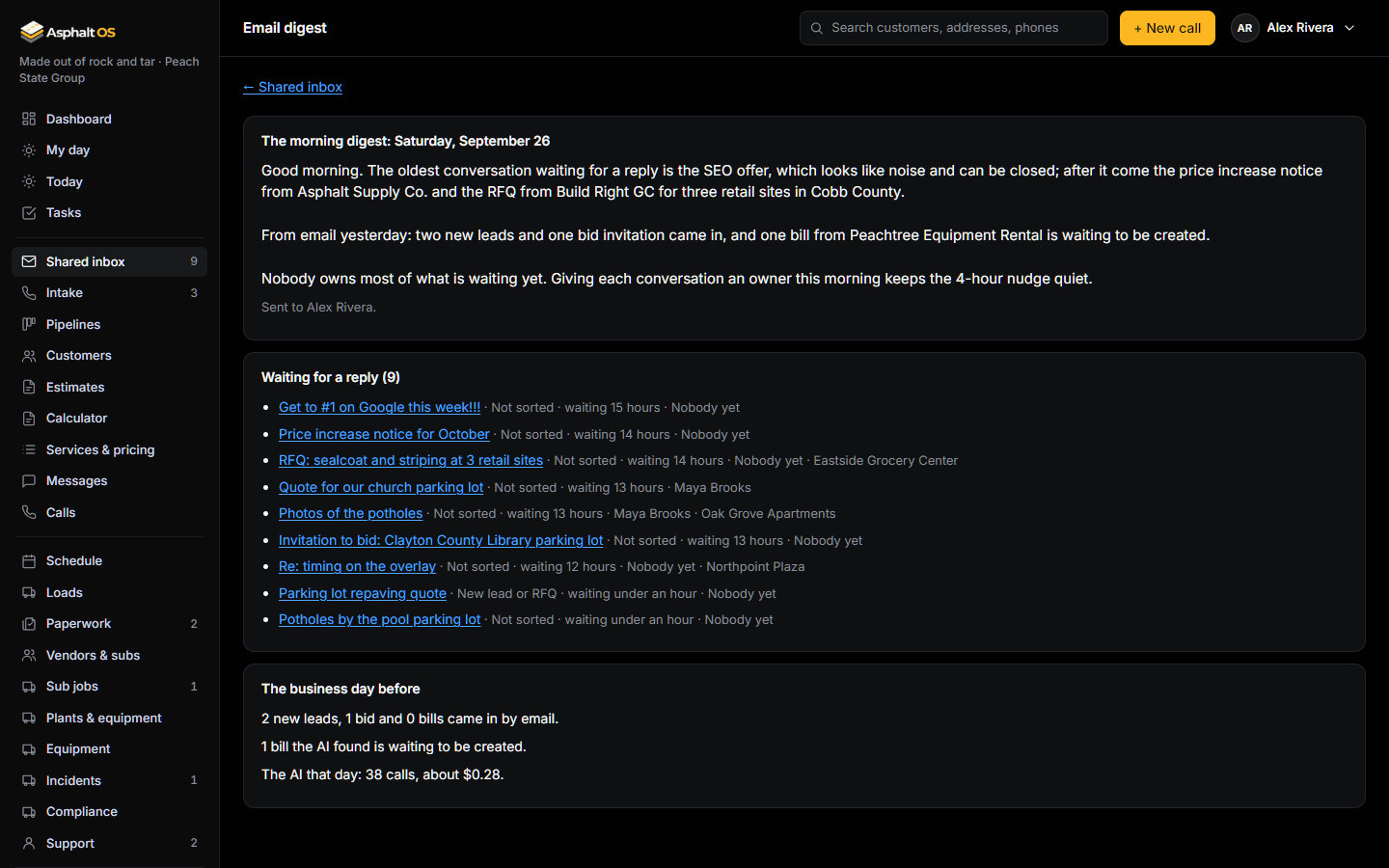
Every business day at the hour set on the Rules page (7:00 AM to start), the people named there get the morning digest: an alert, in the app and the way each chose on their profile ("Email digest: 6 need a reply, 3 new leads and 2 bids from email yesterday, 1 bill to check."), and the page Morning digest beside the box tabs:
- A few paragraphs by the AI, with a key and room under the daily cap; otherwise the page says why there are none, and the rest is there all the same.
- The conversations that have waited longest for a reply, with their category, how long they have waited, who owns them and their record, each opening the conversation.
- What came in by email the business day before (new leads, bids and bills), the bills the AI found that nobody created yet, what the AI sorted as noise (one click from being put right), and what the AI cost that day.
Only people who work the shared inbox can get it (to start, the owner; with nobody ticked on the Rules page, nobody gets one), and only people who work the shared inbox can read it: the people it went to, and the people who change company settings (Open the latest digest under the digest's settings). It names conversations, so somebody who cannot open the inbox never reads it. The page offers the last 30. The AI is given counts and the waiting conversations' subjects, categories, ages, owners and records: never an email's text, never a price.
The nudge
A conversation left on Needs reply for 4 business hours (set on the Rules page; 0 switches it off) gets a nudge: a task, "Answer the email: ...", for its owner, or the office person when nobody owns it, due at once, and an alert. It only ever goes to somebody who can open the conversation's box: when the owner or the office person cannot, it goes to the company's owner. One nudge per email: a new email from them starts the clock again. A snoozed conversation wakes up at its time, back on Needs reply. The nudge is a plain timer: no AI, and switching the AI off does not stop it.
Search
The search box finds a person's name, an address, or words in the subject or the text of any message in the conversation. It also takes: from:planhub.example (an address, a domain or part of a name among the people in it), before:2026-09-01 and after:2026-08-01 (by the last message), has:attachment, and in:bids or in:office for the box. The search looks within the filter you are on: pick All to search every status.
The end-of-day reminder
From 4:30 PM on a working day, if emails are still unsorted, the intake person gets a task: "End of day: empty the inbox and save the intake report". Saving the end-of-day report closes it. The reminder can be switched off on Automations.
The company mailbox
The inbox reads your company's own mailbox, from Google Workspace or Microsoft 365, and pulls new mail in every 2 minutes, from the inbox and from the Sent folder. The Company mailbox card on Settings shows whether it is connected, with Sync now and Stop reading the mailbox. See Connections for how it is connected.
- An email lands on bids@ when it was sent to your bids@ address, and on office@ otherwise.
- A reply joins a conversation of its own box by the mailbox's own thread, by the headers mail programs put on a reply, or, when those are missing, by the same subject and a person in common within 30 days. An email never joins a conversation of the other box: one sent to office@ stays on office@ whatever it says, so people who see only bids@ never read office mail.
- Attachments over 25 MB, or beyond 20 on one email, stay in the mailbox.
- An email that can't be read is filed as a note, so the sync carries on. The Company mailbox card counts it in Asphalt OS's own words, never with the email's subject or sender: people who can't open the inbox see that card too.
- Two attachments with the same name on one email are both kept, the second as 2- and its name.
- The first sync reads the last 7 days: the newest 50 emails of each folder at most.
- After a long gap (the mailbox off for a while, say), new mail comes in a share at a time: at most 50 emails of each folder every 2 minutes (from Google Workspace, fewer when their attachments are large), until the inbox has caught up. None is missed and none comes in twice.
- With Microsoft 365, the inbox and Sent Items are read the way Microsoft documents it, and each email's reply headers are fetched on their own, so a reply lands in its conversation. A letter the app sent is known in Sent Items by the Message-ID the app gave it, so it is never filed twice.
- A copy of a reply put in the Sent folder (the owner's switch) is recognised when the mailbox is read, and never filed twice either.
- Any other letter the app sent (a proposal, an invoice, a billing form, a document, an invitation) is left out when the Sent folder shows it: it carries your customer's own link.
- A link to one of your customers' pages (a quote, a pay page, a form, a download, an invitation) is taken out of every email before it is kept, and shows as (customer link removed): a customer's reply quoting your letter, or a forward of it, never lets somebody in the inbox open the page as the customer, however the mail program wrapped or broke the link. An attached file that holds the link (the quoted letter as an .htm file, a forward as an .eml) is left out, and the email says which file. The customer's own link keeps working.
- For the same reason a customer's link can't be written into a reply or a text from the app: the letter that carries a link gets it as it leaves, when you send the quote, the billing form, the invoice or the document from its own page.