

Three boards
- Sales: New lead, Sizing, Estimating, Approved, Followed up, Accepted and Lost, plus On hold and Canceled when you tick Show on hold and canceled.
- Key Accounts: Target, Contacted, Meeting, Vendor Setup/MSA, Active Account and Dormant.
- Production: Accepted, Scheduled, In progress and Complete. It shows to people who can see the schedule or invoices.
Filter by brand and by owner. Finished columns (Accepted, Lost and Canceled on Sales, Complete and Canceled on Production) show the last 30 days, 6 cards at most; the rest are on Reports. Estimators see only their own leads. Support tickets and sub jobs have boards of their own: Support tickets and Sub jobs.
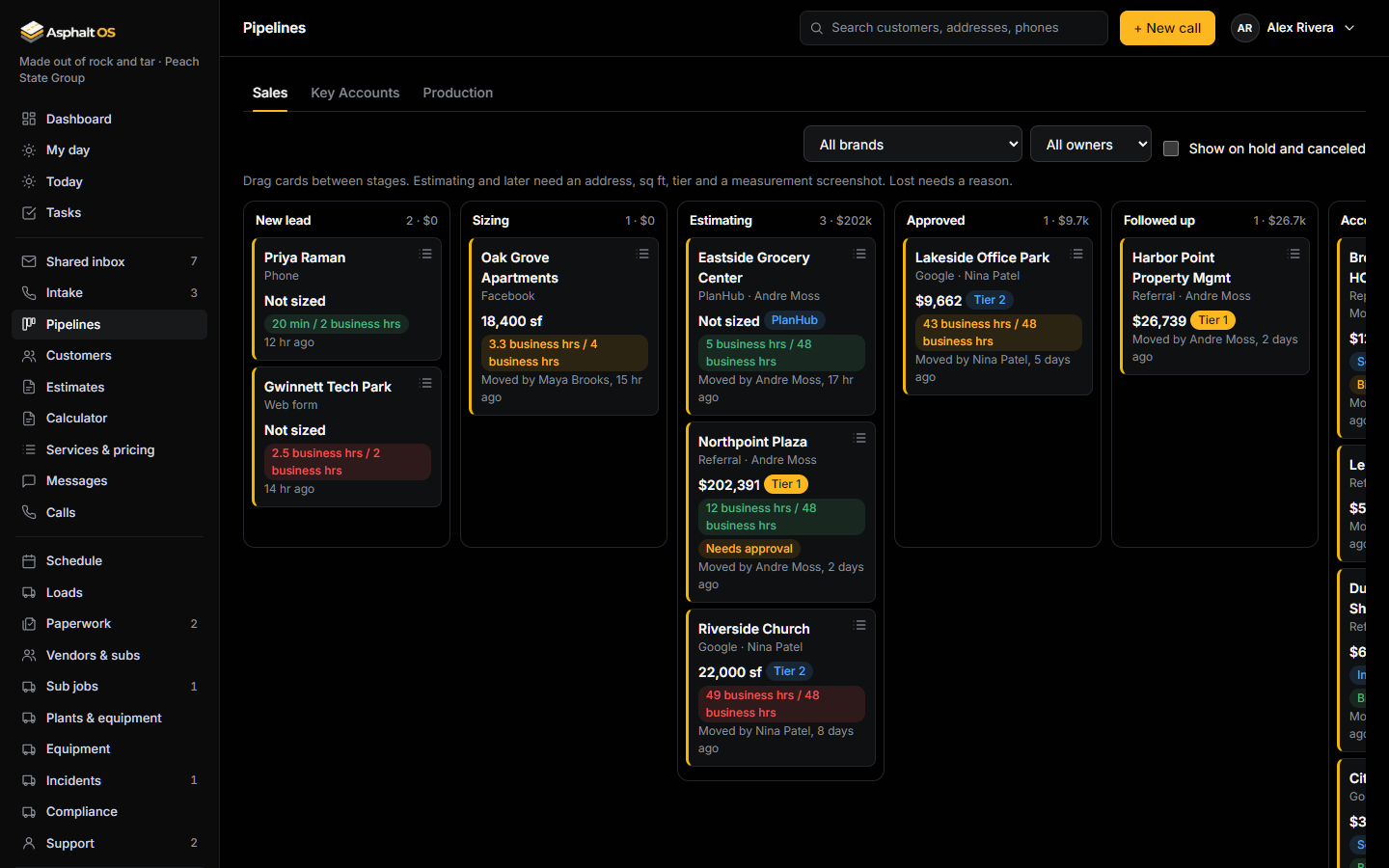
Cards
A card shows the customer, source and owner, the value (or the size, or "Not sized"), the tier, the time limit clock, and flags such as "Needs approval". It also says who moved it last and when, for example "Moved by Dana, 2 hr ago".
Drag a card to another column, or use its menu: Open, Resume, Put on hold, Cancel, Mark lost and Move to. On a phone the board becomes plain lists.
The rules for each step
The database refuses a move that breaks these rules, and the app tells you what is missing.
- Estimating and later need an address, and (except PlanHub leads) the asphalt square feet, a tier and a measurement screenshot.
- Approved, Followed up and Accepted need an estimate that has been sent to the customer.
- Lost needs a reason: Price, Went with a competitor, Timing or budget, No response, Out of scope, Out of service area, Not a real lead or Other. It feeds the win and loss report.
- Scheduled is never set from the board: pick a crew and a date on the Schedule.
- Once a job is Accepted, work that falls through is Canceled, not Lost.
- A Complete job can only go back to In progress. A Complete job becomes Closed on Job money.
- On hold remembers where the work was. Resume puts it back there.
- A Lost lead can be reopened into any sales stage. Its loss reason is cleared.
To move cards, add notes or tasks you need "Take calls and create leads", "Tier and route new leads" or "Create and edit estimates". Seeing leads alone is look-only. Moving a job into In progress, Complete, Canceled or On hold also needs "Assign crews and dates".
The customer drawer
Click a card to open the customer's page:
- The contact, phone, email, address, customer type, county, services, square feet, bid due date, texting consent and status.
- For accepted work, the job: its number, status, crew and day, value and billing form, with links to its plant and equipment, sub job, transactions and tons.
- Estimates, tasks, Add a task and Log a call note.
- Comments on the lead, and on the job once there is one.
- The timeline: status changes, texts and emails, tasks, calls, notes and comments. People who can see the history log also see field changes.
- A Customer profile link, for people who may open Customers: the same customer with all of their leads, jobs, invoices and one timeline of everything.
Comments
Leads, jobs, support tickets and sub jobs each have a comment thread. Anyone who can see the record can read it, and every default role can write. Type @ to mention a colleague. A mention posts an alert that names who mentioned whom, with a link, but never the comment itself or the customer's name. You can edit or delete only your own comments.