

The tabs
Each tab shows only if you can use it:
- People ("Manage people and their exceptions"): everyone with their role and rank, crew, exceptions, when they were last active and whether their two-factor sign-in is On, Off or Required, not set up, plus Invite person and the invites list. See Inviting your team.
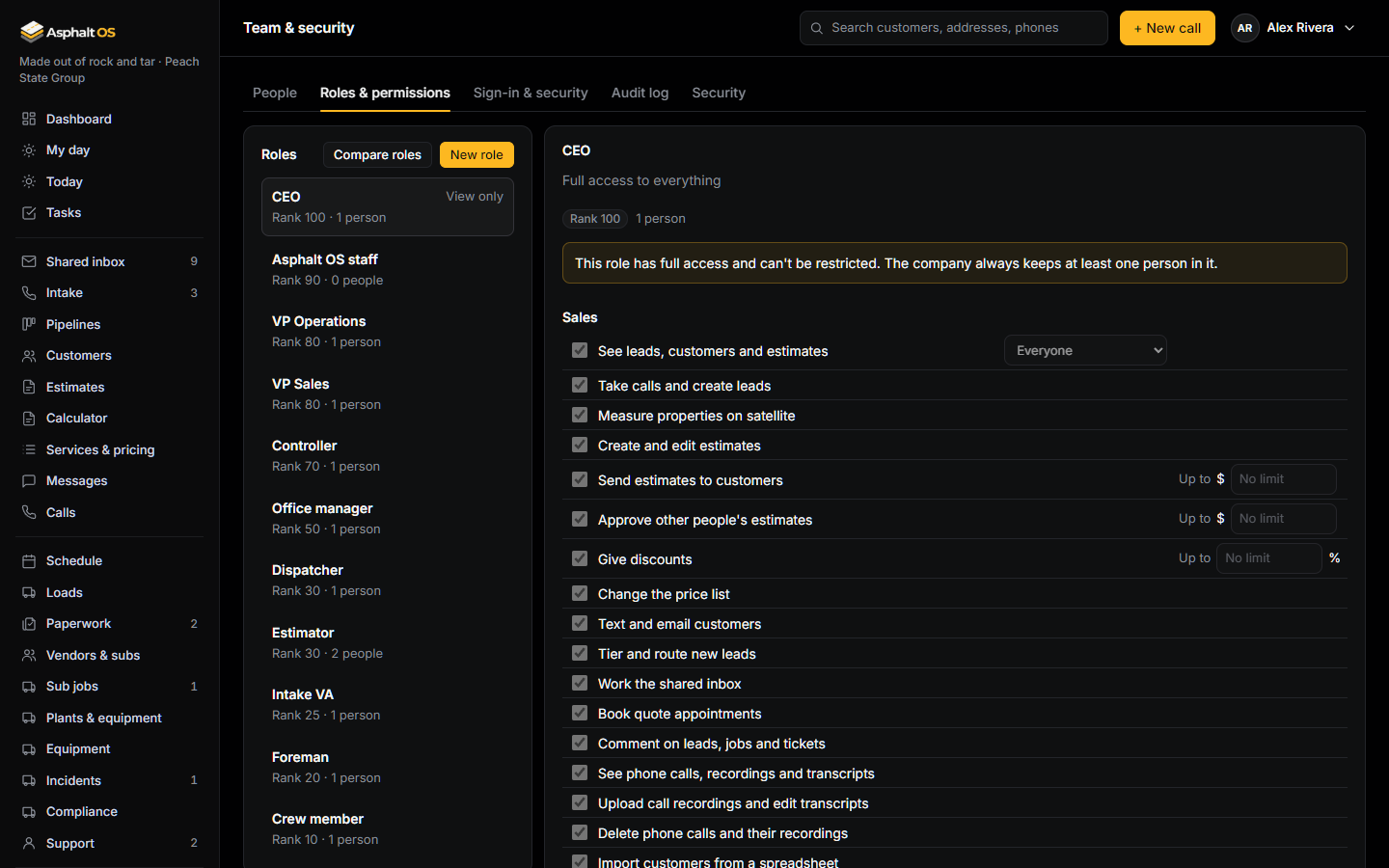
- Roles & permissions ("Create and edit roles", or managing people): the roles by rank, the role editor and Compare roles. See Your own roles and exceptions.
- Sign-in & security ("Change company and sign-in settings", or managing people): the sign-in rules, and how your data is protected.
- Audit log ("See the audit log"): the history of changes. See The history log.
- Security (also "See the audit log"): the company's security events. See below.
Managing a person
Press Manage next to someone to change their role, job title and crew, and their exceptions. You can manage people ranked below you, but not yourself, and you can't give anyone access you don't have. For someone ranked at or above you, the button says View access.
The drawer also shows the person's Contact details from their profile: their mobile and work phone, which one gets texts, how alerts reach them, their emergency contact, and the last four digits of a Social Security number if they entered one. Someone with "View full Social Security numbers" (the Controller, in a new company) can press Reveal: it asks for their password, shows the number for 10 seconds, goes into the history log and alerts the owners. Nobody can reveal their own.
Remove from the company, at the bottom of the drawer, asks for your password again and takes the person out: their sessions end, they can no longer sign in to the company, and what they did stays on record.
Sign-in rules
- Sign out after inactivity: 15 minutes, 30 minutes (the default), 1 hour or 4 hours. Only people who can change company settings can edit it.
- Require two-factor sign-in for everyone: on in a new company. Everyone then signs in with their password and a 6-digit code from an authenticator app on their phone. Anyone who hasn't set one up is led into it at their next sign-in, before anything else opens. The people who haven't set it up yet are listed under the switch. In the demo company the switch starts off, because none of the demo people has an authenticator app.
If someone loses their phone, press Manage next to them and then Reset two-factor. They are signed out everywhere, their recovery codes stop working, and they set two-factor up again the next time they sign in. You need to be able to manage people and be ranked above them, and the reset goes into the history log.
Changing what a role may do, creating or deleting a role, exceptions, someone's role, taking someone out, a reset, an invitation, a brand's details and the sign-in rules ask for your password again first; the right one is remembered for 5 minutes on that device.
The Security tab (for anyone who can see the audit log) lists the company's security events: sign-ins from new devices, password and two-factor changes, trusted devices, locked accounts and devices signed out, each with who, when and which device. Tick Only what Asphalt OS staff did to see every line by the Asphalt OS team.
Where people sign in from
The address and browser behind a sign-in, a password change or a trusted device show only to the person it concerns and to people who manage people. Someone who can only read the history log (the Controller, say) sees who did what and when, never where from or with which browser. Every person sees their own account's events on My profile, whatever their role.
The other sign-in protections are fixed. See Sign-in protections.