

The Invoices page
Four counts on top: Ready to invoice, Due now, Overdue and Retainage held. Tabs: Ready to invoice, Invoices and Aging.
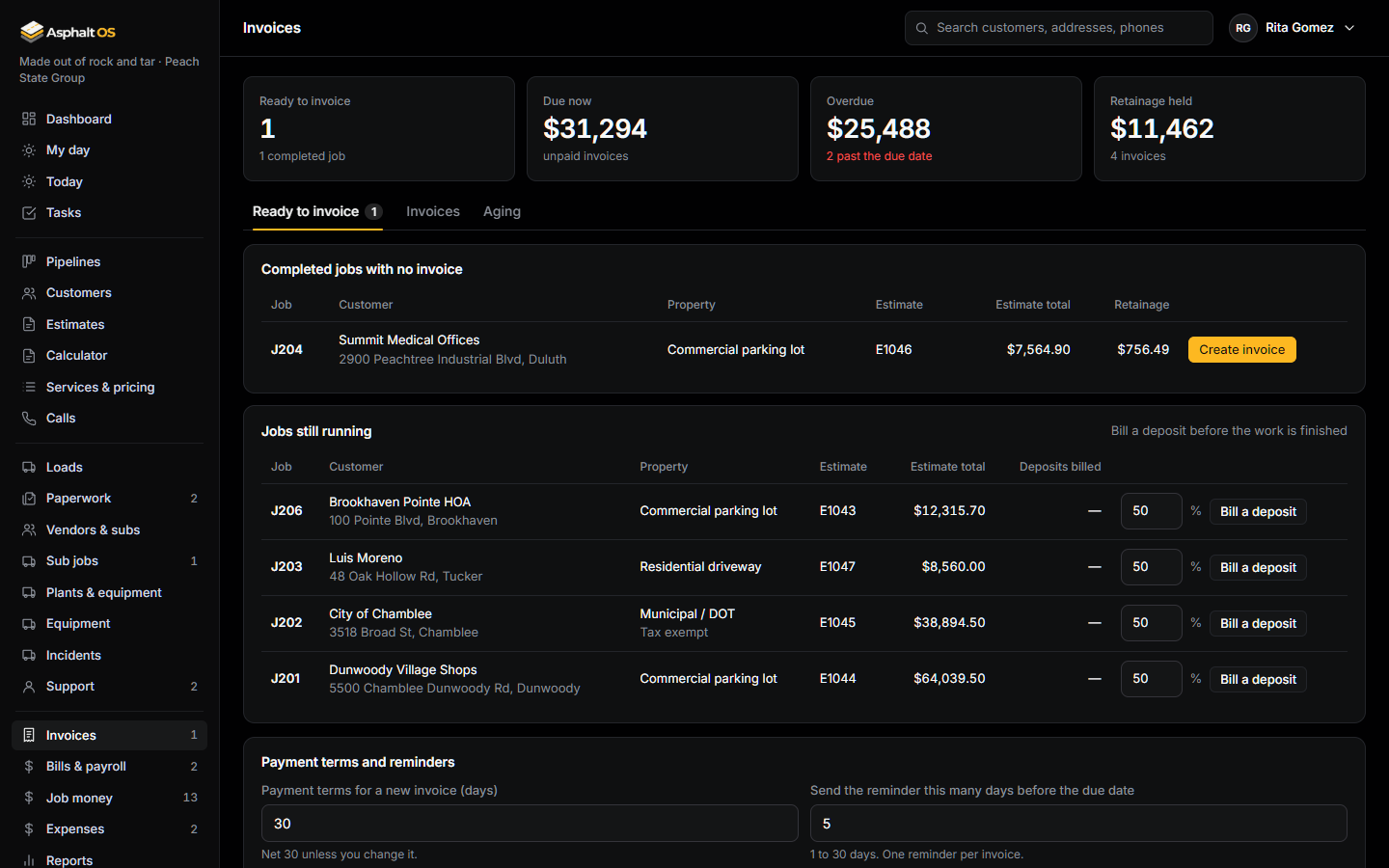
Create an invoice
- Create invoice on a completed job makes its final invoice. There is one final invoice per job.
- Bill a deposit on a job that is still running bills a percentage of the estimate (50% to start). Deposits can never add up to more than the estimate.
The lines come from the job's estimate. A final invoice subtracts the deposits already billed. Tax comes from the estimate, or is zero when the customer said on the billing form that they are tax exempt.
Retainage: 10% of the invoice is held back until the job is signed off, except on residential driveways and deposit invoices.
Invoices are numbered from INV-3100 and every new one starts as a draft. Payment terms start at 30 days (Net 30); 0 means due on receipt. The due date is set when the invoice is sent.
Statuses
Draft, Sent, Partially paid, Paid in full or Void. The screens also show Overdue when a sent invoice is past its due date, and Retainage held when only the retainage is left. The status follows the payments on its own.
- Only a draft can be edited. To change a sent invoice, void it and create a new one.
- Void works only when nothing has been paid. A void invoice stays on record, nothing is owed on it and its pay link stops working.
- Delete draft removes a draft that was never sent.
Send it
Send invoice emails it, with the PDF attached, to the address you choose (filled in from the billing form or the contact). The letter is written by the database from the invoice itself, and the background worker makes its Pay online link, good for 180 days, at the moment the email leaves, so a working link never sits in a stored letter. The PDF carries no link of its own: it says to use the one in the email, and that a check or bank transfer is just as welcome. Reminders go to the same address.
How the customer pays
The link opens a page with your brand, the invoice number, the amount due and the due date. No sign-in needed. What happens next depends on the Payments (Stripe) card of Connections:
- With your company's own Stripe account filled in, Pay online opens Stripe's own checkout for a card or a bank transfer, and the money goes straight to your Stripe account. Asphalt OS never holds money and never sees a card number. Stripe's test keys mean no real money moves.
- Without Stripe there is no checkout at all: the page says online payment isn't set up yet and to reply to the invoice email to pay by check or bank transfer, and the invoice PDF says the same.
- Only one checkout can be open per invoice: opening a new one closes the earlier one, so a customer can't be charged twice. Voiding the invoice closes its checkout too.
- Stripe tells Asphalt OS when a payment went through, in a signed notice that the background worker checks with your own signing secret, and the invoice shows it as "Card (online)" or "Bank transfer (online)". The notice is never thrown away while the worker catches up: it waits and is tried again.
- If a payment arrives after the invoice was paid, voided or changed, the customer is told "Nothing was charged: this invoice has already been settled, or it changed while this page was open. Please check with us before paying again." If money did move in that moment, it is never recorded against the invoice; your office gets a task and an alert saying a payment went through but was not recorded, so you can check and refund.
- While Stripe can't be reached, the customer is asked to try again later or pay by check or bank transfer. Online payment also waits while the background worker is stopped. See Company settings.
Record a payment by hand
Record payment: how it came in (Check, Bank transfer (ACH), Cash, or Card taken elsewhere), the amount and a reference such as "Check #1042".
- The invoice must be sent first. A payment can't be more than the balance due.
- Payments are never edited. A payment entered by hand can be removed; an online one can't.
- Release retainage records the held amount once everything else is paid.
Creating and sending invoices needs "Create and send invoices". Recording payments and releasing retainage needs "Record payments and release retainage".
Reminders
- One reminder email, 5 days before the due date to start (1 to 30 days), with a Pay online link where there is something left to pay online.
- One overdue notice the day after the due date. You can turn it off.
- Nothing is sent for drafts, void invoices or invoices with nothing due now.
- Every reminder is logged on the invoice and the customer's timeline.
- With no email address on file, your office gets a task to add one.
Change the terms and the reminders on the Payment terms and reminders card, or on Settings.
Aging
The Aging tab groups what customers owe by how late it is: Current, 1 to 30, 31 to 60, 61 to 90, and over 90 days past due. Retainage held is a separate row, because it isn't due until the job is signed off.